
Best Budget Laptops Under $500 in 2026
Find the best budget laptops under $500 in 2026. Compare Acer, ASUS, Lenovo and Chromebook options, with pros, cons and buying advice.


Best Budget Laptops Under $500 in 2026: 4 Top Picks Reviewed
For most shoppers, the best budget laptops in 2026 are Windows laptops for desktop software and offline work, or Chromebooks for browser-first tasks. Choose by apps first; skip budget models for demanding gaming or heavy creative workloads.
Key Takeaways
Compare the exact laptop configuration, not just the model name.
At least 8GB of RAM is a useful target for everyday multitasking.
Windows suits shoppers who need desktop software; Chromebooks suit browser-first work.
Budget laptops are best for everyday tasks, not demanding gaming or heavy creative work.
The best laptops under 500 at a glance
These four models cover straightforward Windows use, everyday multitasking and browser-based work. Retailer prices and availability change, so compare the specific configuration before buying.
Laptop | Best for | Operating system | Configuration to target | Standout strength |
|---|---|---|---|---|
Acer Aspire Go 15 | Basic everyday Windows tasks | Windows | At least 8GB RAM and a 256GB SSD | A familiar Windows setup for browsing, documents and video calls |
ASUS Vivobook Go 15 | Everyday Windows use on a larger-screen laptop | Windows | At least 8GB RAM and a 256GB SSD | A 15-inch format suited to working across documents and browser tabs |
Lenovo IdeaPad Slim 3 15AMN8 | Windows all-round use | Windows | At least 8GB RAM and a 256GB SSD | An AMD-based option for general productivity |
Acer Chromebook Plus 514 | Web-first schoolwork and browsing | ChromeOS | 8GB RAM or more; choose storage that fits your files | ChromeOS and Chromebook Plus positioning for browser-led tasks |
The 8GB RAM and 256GB SSD targets are a practical baseline for everyday use, not a guarantee that every configuration has those components. Compare the processor, memory and storage listed for the exact SKU; a cheaper version with less memory or storage can be a poor value if it frustrates your workload.
Windows models suit buyers who need Windows desktop apps. The Acer Chromebook Plus 514 is a better fit when your work happens mainly in browser apps, but ChromeOS may not support every desktop program or workflow.
How I evaluated these budget laptops
I did not run hands-on tests. I assessed the picks using manufacturer specifications, published reviews and owner reports, focusing on whether each configuration fits the everyday tasks its recommendation names. I also considered recurring usability concerns, such as limited memory or storage, rather than treating a low advertised price as proof of value.
Acer Aspire Go 15: Best for a straightforward Windows laptop
Best for: people who want a larger-screen Windows laptop for everyday browsing, documents, video calls and streaming. The configuration reviewed is the Acer Aspire Go 15 (AG15-32P-39R2); similarly named models may have different hardware.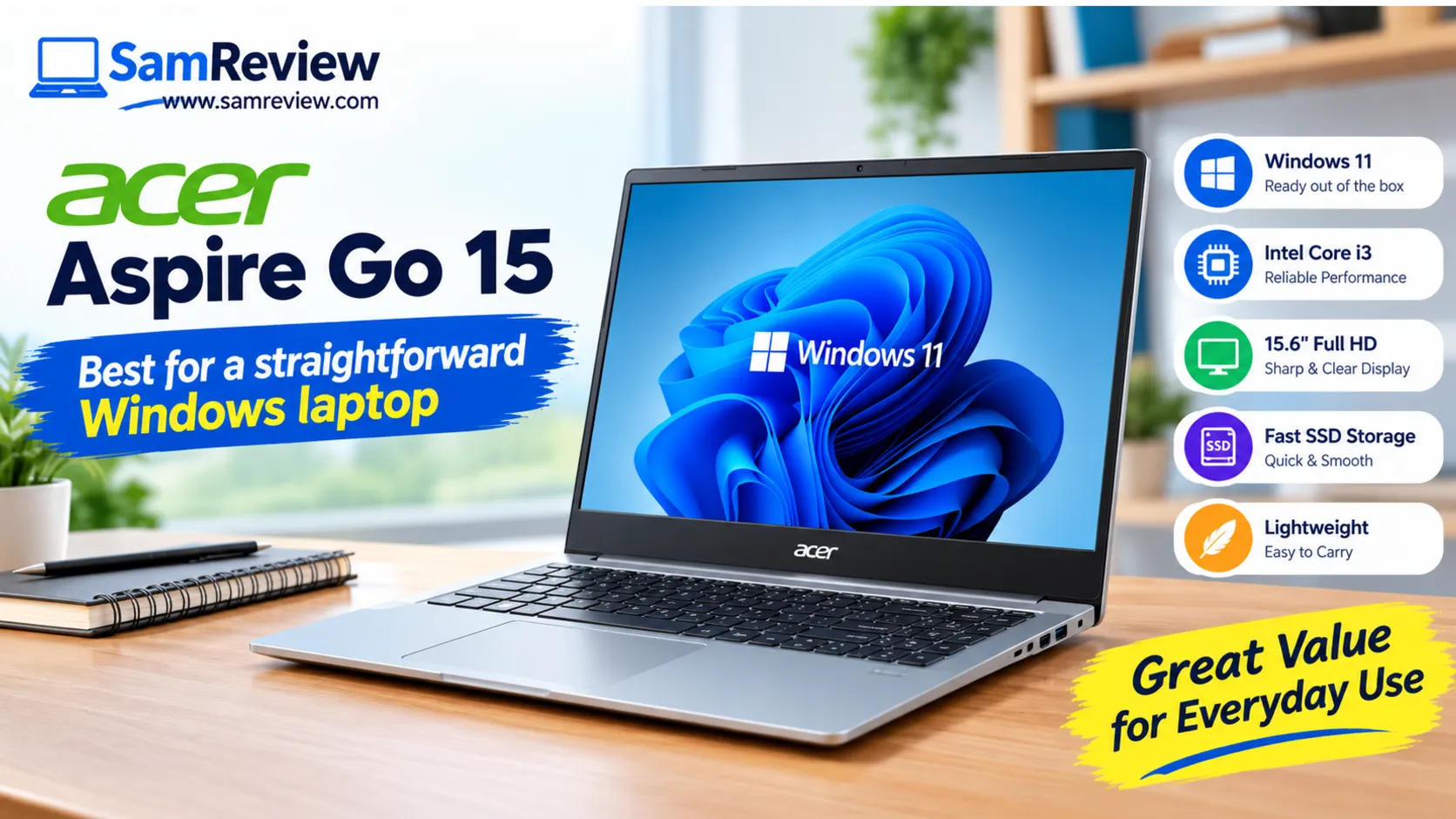
That makes it a sensible fit for a desk-based routine: writing a paper, joining a call, keeping several browser tabs open or watching a show after work. The USB-C ports are also useful for connecting compatible accessories.
Buyers who need familiar Windows desktop software can use this PC instead of adapting their workflow to ChromeOS. The trade-off is a low performance ceiling: I would not choose it for demanding creative applications, heavy multitasking or modern games that need strong graphics.
The display is a practical strength, but the rest of the experience has compromises. The available facts do not establish the keyboard’s quality, so I would not make that a deciding advantage without seeing it in person.
Acer Aspire Go 15 (AG15-32P-39R2): Pros & Cons
✓ Pros
1080p IPS display for clear everyday viewing
Wi-Fi 6E and two USB-C ports
Windows support for compatible desktop software
✗ Cons
Low performance ceiling for demanding work and gaming
Subpar battery life
Noticeable cooling fan and non-upgradable UFS storage
My verdict: I would choose this laptop for basic Windows work at a desk. I would skip it for demanding workloads, long stretches away from a charger or anyone who expects to expand its storage later.
ASUS Vivobook Go 15: Best for a slim, everyday Windows pick
Best for: schoolwork, email, web browsing and basic Office tasks, provided the configuration has 8GB of RAM and a 256GB SSD.
The 8GB memory configuration is a more sensible starting point for Windows than a 4GB model, especially if you keep several browser tabs and a document open together. The 256GB SSD gives you room for everyday apps and files, though large media libraries or creative projects can use that space quickly.
The processor needs a closer look before buying. The product name covers multiple configurations and does not identify the CPU. Choose a listing that names its exact processor and compare that chip with the other laptops on your shortlist. A low price does not make every processor version equally suitable for multitasking.
For routine school and office work, this configuration makes sense if your workload is mostly browser-based, documents, email and video calls. It is not the right choice for sustained heavy multitasking or demanding creative work: 8GB of RAM leaves less room for many applications to run at once, and the 256GB drive limits local storage. Keep large files in cloud storage or on an external drive if you expect to accumulate them.
ASUS Vivobook Go 15 (8GB RAM, 256GB SSD): Pros & Cons
✓ Pros
256GB SSD provides local space for core apps and school or office files
✗ Cons
The model name alone does not identify the processor
8GB of RAM can constrain heavy multitasking
256GB of storage can fill quickly with large files
My verdict: I would consider this laptop for everyday Windows work if the configuration has 8GB of RAM, a 256GB SSD and a processor suited to your workload. I would skip it if you need dependable heavy multitasking or substantial built-in storage.
Lenovo IdeaPad Slim 3 15AMN8: Best for a capable Windows all-rounder
Best for: shoppers who want a Windows laptop for school, browsing and home tasks. Prioritize a configuration with 8GB of RAM and a 256GB SSD; the model name does not establish which processor or configuration you are buying.
That memory and storage combination is a sensible starting point for typical use: documents, browser tabs, video calls and everyday apps. It is not a promise of smooth performance with demanding software or many heavy applications open at once. A 256GB SSD also leaves less room for large photo, video or game libraries than a 512GB drive, so consider where you will keep files before choosing.
The processor matters as much as the memory. Compare the named chip in the listing rather than assuming that every 15AMN8 has the same performance. For schoolwork or home use, I would favor a configuration with enough RAM and storage over one with a vague processor description or just 4GB of RAM.
The physical details should suit how you plan to use the laptop. Screen resolution and panel type affect the viewing experience, and keyboard layout matters for long writing sessions. For accessories or an external display, compare the ports with the devices you already own. Battery claims are a guide, not a guarantee of a full day away from an outlet; long video calls and heavier workloads can reduce runtime.
Lenovo IdeaPad Slim 3 15AMN8: Pros & Cons
✓ Pros
An 8GB RAM configuration is a more practical starting point for everyday Windows multitasking than 4GB
A 256GB SSD provides local space for core apps and school or office files
A $500-or-less configuration fits the stated budget when the exact purchase price meets that limit
✗ Cons
The model name alone does not identify the processor or the included configuration
8GB of RAM can constrain demanding multitasking
256GB of storage can fill quickly with large files
My verdict: I would choose this laptop as a Windows all-rounder when its configuration provides 8GB of RAM, a 256GB SSD and a processor suited to your everyday workload. I would pass on a lower-memory configuration or one whose screen, ports and battery claims do not fit how you plan to use it.
Acer Chromebook Plus 514: Best for web-first work and school
Best for: people whose schoolwork or daily tasks happen mainly in a browser. This is a ChromeOS laptop, but the model name does not identify a single memory-and-storage configuration.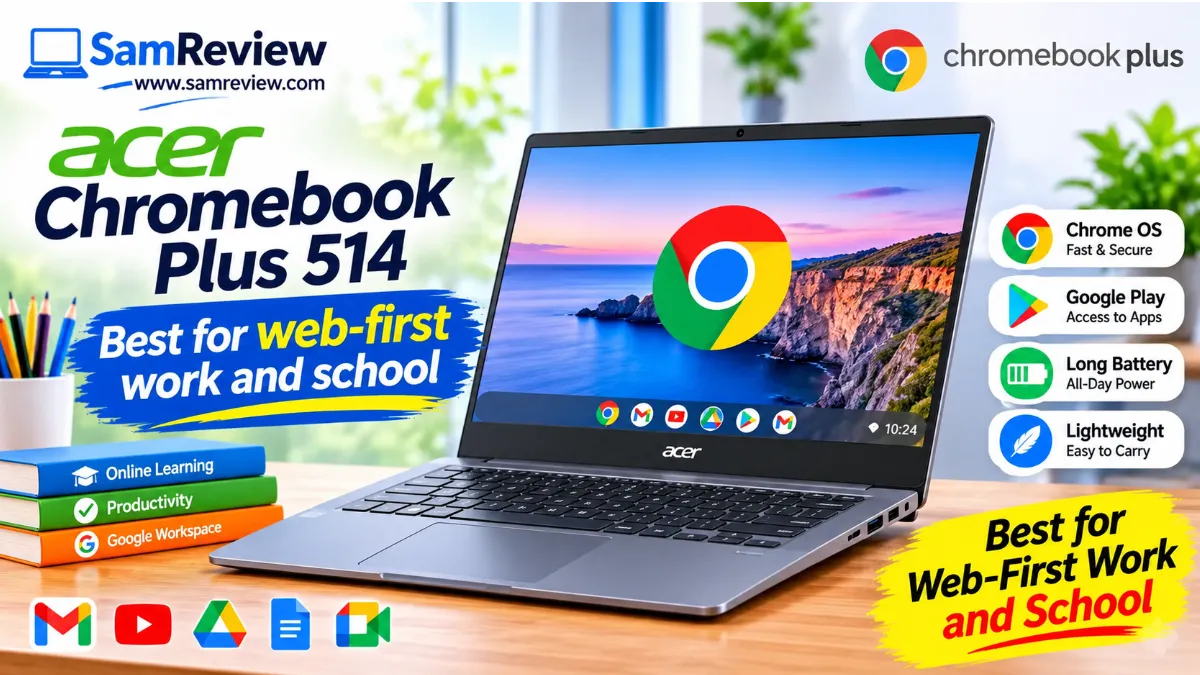
ChromeOS fits browser-based work, Google services such as Docs and Drive, and video calls through compatible web apps. That makes it a practical option for writing assignments, managing email and joining online classes without needing a Windows desktop environment. Required course platforms and software need to work in Chrome or have a ChromeOS app.
Chromebooks can also run some Android apps from Google Play and Linux apps on supported devices. App support is not universal, so consider compatibility for the specific app and device rather than assuming a phone or desktop version will work. Google’s Chromebook help for Android apps and Linux development environment explain these options.
Offline use needs planning. Some Google apps can work without an internet connection when offline access is enabled in advance, but web services and features that need cloud access will not be available on a flight or in a weak-signal classroom. Windows-only programs are another clear reason to choose a Windows laptop instead. A Chromebook is a poor fit if your workflow depends on a particular Windows application, peripheral utility or locally installed software.
The value decision is about software fit as much as hardware. Compare the included memory and storage with your intended apps and files; browser tabs, video calls and cloud documents are lighter work than large local projects.
Acer Chromebook Plus 514: Pros & Cons
✓ Pros
ChromeOS suits browser-first schoolwork and Google services
Compatible web apps support online classes and video calls
Some supported Android and Linux apps extend its use beyond the browser
✗ Cons
Windows-only programs are not a fit
Offline access requires compatible apps and advance setup
Configurations differ, so the model name alone does not establish memory or storage
My verdict: I would choose this Chromebook for students and web-first users who rely on browser tools and can work within ChromeOS. I would choose a Windows laptop instead when required software is Windows-only or offline work depends on locally installed applications.
How to choose the right laptop under 500
Choose by the software and work you need to do, then compare the exact configuration—not just the laptop’s name or processor. A budget laptop can be capable for everyday use, but a model with too little memory, unsuitable apps or an uncomfortable screen can still be the wrong choice.
Start with the apps and devices you need. Choose Windows if your work depends on a particular desktop program, a Windows-only application or a peripheral that requires Windows drivers. ChromeOS is a sensible fit for browser-first tasks such as web research, Google Docs and online classes, but essential apps need to work in ChromeOS and meet your offline needs. For Windows, the exact configuration must meet Microsoft’s Windows 11 requirements and be eligible for security updates.
Judge the processor and memory together. A processor’s name alone does not tell you how smoothly a laptop will handle several open tabs, video calls and documents. For a Windows laptop used for everyday multitasking, I would look for at least 8GB of RAM; 4GB can constrain switching between apps. Compare the processor and memory listed for the specific configuration you are considering. A Chromebook belongs on a ChromeOS shortlist only if its apps and workflow fit your needs.
Consider storage capacity, type and upgrade options. A 256GB SSD is a practical baseline for many everyday users, while 512GB leaves more room for downloaded files and applications. The listing should specify whether storage is an SSD or another type, and whether the drive or memory can be upgraded later. Configurations sold under the same model name can have different capacities.
Match the screen and controls to how you work. A larger display can make side-by-side documents easier to read, while a smaller laptop is easier to carry. Compare resolution and brightness, especially if you work in a bright room; the keyboard layout and webcam matter too if you type or take video calls daily. The ports should cover your actual devices, such as a mouse, external display or headphones. A thin body is less useful if connecting your regular equipment requires adapters you do not own.
Treat battery claims and gaming as workload questions. Battery estimates are meaningful only alongside their test conditions: brightness, connected Wi-Fi, workload and power settings can change the result. Compare independent results that describe those conditions rather than relying on a headline claim. Under 500, integrated graphics and entry-level processors are generally better suited to everyday use and light games than demanding modern games or heavy creative workloads. Gaming needs should guide your choice of hardware.
Keep your budget tied to the exact configuration. The under-500 limit applies to the particular memory, storage and operating-system version you select, not every laptop carrying that model name. If your preferred configuration costs more, consider whether its extra capacity solves a real need before stretching your budget.
Which under-500 laptop should you pick?
For school or office software, I’d choose a Windows model; for browser-based work, the Acer Chromebook Plus 514 is the better fit if its apps and offline limits suit your routine. The right choice depends on the software you need, how often you work without internet and whether you carry the laptop regularly.
For school assignments and office apps: Pick the Lenovo IdeaPad Slim 3 15AMN8 as the Windows all-rounder, or the Acer Aspire Go 15 for straightforward everyday use. Windows is the safer choice when your course or workplace requires desktop software. Look for at least 8GB of RAM and 256GB of SSD storage; a low-priced configuration with less memory may feel less capable.
For web-first work and school: Choose the Acer Chromebook Plus 514 if your work fits ChromeOS and the web apps you use. Essential apps need to work in ChromeOS, and your workflow should suit its offline limits. A Chromebook can be a poor fit if a class or employer requires a Windows-only program.
For frequent travel: Compare the exact configuration’s size, weight, battery-life evidence and charging method before choosing. A larger screen can make documents easier to read, but it takes more room in a bag. Battery claims alone are not enough; independent results should describe the workload.
If your preferred configuration costs more than your budget: Compare another listed model with the same operating system and enough memory and storage, or wait for the price to fall. A temporary deal on one configuration does not mean every version of that laptop meets your budget.
For demanding gaming or professional creative work: I would not recommend these picks without evidence that the specific configuration meets your software or game requirements. Entry-level hardware is a compromise for those workloads.
Final Verdict
The best budget laptops under 500 are the configurations that match your software and daily workload, not simply the models with the lowest advertised price. For a balanced Windows choice, I recommend the Lenovo IdeaPad Slim 3 15AMN8: it is the all-rounder pick for everyday work, study and browsing. Choose the Acer Aspire Go 15 for a straightforward Windows laptop, or the ASUS Vivobook Go 15 if a slim everyday design is your priority.
The Acer Chromebook Plus 514 is the better fit for web-first schoolwork and browser-based tasks. Its ChromeOS focus makes it a poor match if you rely on Windows-only programs or need your usual apps to work offline. Judge each choice by its exact configuration and current price; a model name does not guarantee that every version fits your budget.
I would skip this category for demanding gaming or professional creative workloads unless the specific laptop meets the requirements of your software. My verdict: I recommend the Lenovo IdeaPad Slim 3 15AMN8 as the overall pick for a broad mix of everyday tasks; choose another listed model when its operating system or design better fits your routine.
Sources and Further Reading
Frequently Asked Questions
What is the best laptop under $500 in 2026?
The Lenovo IdeaPad Slim 3 15AMN8 is an option for everyday use in this guide. Its Windows setup suits common school, home and work tasks, while the Acer Chromebook Plus 514 is a better fit for browser-based work. Compare the exact configuration and current price before buying.
Is a Chromebook or Windows laptop better under $500?
A Chromebook is a better choice if your work happens mainly in a browser and your required apps support ChromeOS. A Windows laptop is more suitable for desktop software and broader offline use. A school or workplace application requirement can make Chromebook compatibility a deal-breaker.
How much RAM should a laptop under $500 have?
A laptop should have at least 8GB of RAM for everyday browsing, documents and video calls. More memory can help with heavier multitasking, but compare it alongside the processor and storage rather than paying extra for RAM alone. Some laptops have memory that cannot be replaced.
Can a laptop under $500 run Microsoft Office?
A Windows laptop can run Microsoft Office when its configuration meets the software’s requirements. Chromebooks can use Microsoft 365 in a web browser, but they do not run the Windows desktop versions of Office applications. Specific features or offline access may depend on the operating system and workflow.
Are laptops under $500 good for college?
A laptop can work well for college if it handles your course platform, documents, research and video calls. The Acer Chromebook Plus 514 suits web-first study, while a Windows pick is safer when courses require desktop applications. Specialist programs or work that must run offline may affect which operating system is suitable.
Can you play games on a laptop under $500?
A laptop in this category is generally a poor choice for demanding gaming. Entry-level processors and integrated graphics limit performance in graphically intensive titles. A game’s system requirements and the exact laptop configuration determine whether it will run well.
What should I look for when buying a cheap laptop?
Compare the exact processor, RAM, storage, display, ports and operating system, not just the model name or sale price. Aim for at least 8GB of RAM and consider whether 256GB of storage is enough for your files. For Windows, the device should remain eligible for security updates.
Last updated November 23, 2026. Prices, plans and features change often; check the official sites before you buy.
Love Traveling? Explore More with TripBuyGo
If you love exploring new destinations, discovering beautiful places, or planning your next adventure, you can visit TripByGo for more travel inspiration, destination guides, helpful travel tips, and trip-planning ideas. Whether you're looking for your next holiday destination or practical travel advice, TripByGo can help you plan your journey.
Explore more: Visit TripBuyGo
✍️ More from Shahinur alam
Best Laptops for Programming in 2026: Black Friday Deals, Prices & Reviews
Best Laptops for College Students in 2026: 7 Top Picks

Best Black Friday TV Deals 2026: 7 TVs Worth Buying, Reviews
Black Friday Laptop Deals 2026: Best Prices & What to Skip

Microsoft Global Outage Disrupts Outlook, Teams and 365: What Happened?

5 iPhone Security Settings to Change Now to Protect Your Privacy
Reviews & Comments (0)
No comments yet. Be the first to share your thoughts!
Shahinur alam
Shahinur Alam is a Senior Tech Analyst and the Lead Reviewer at SamReview. With over 14 years of hands-on experience in the consumer electronics industry, he specializes in testing and evaluating laptops, smartphones, and AI hardware. Before joining SamReview, Shahinur worked as a hardware specialist, where he developed a deep understanding of GPU architectures, memory bandwidth, and local AI workloads. He is passionate about breaking down complex technical specifications into easy-to-understand buying advice for everyday users. When he's not benchmarking the latest gadgets, Shahinur enjoys building custom PCs and exploring the latest trends in artificial intelligence.
Read Next
View All →Best Laptops for Programming in 2026: Black Friday Deals, Prices & Reviews
Find the best laptops for programming in 2026 with Black Friday prices, regular price comparisons, savings, specifications, pros and cons.
Best Laptops for College Students in 2026: 7 Top Picks
Find the best laptops for college students in 2026. Compare MacBooks, Windows laptops and Chromebooks for budget, battery life, engineering, and everyday study.
Best Black Friday TV Deals 2026: 7 TVs Worth Buying, Reviews
Find the best Black Friday TV deals 2026. Compare LG, Samsung and Sony OLED, QLED and Mini LED TVs, prices, pros, cons and buying options.

How to Use ChatGPT for Free (2026): Complete Beginner's Guide
Learn how to use ChatGPT for free in 2026. Discover how to create an account, write better prompts, use AI tools, generate images, and get more done without paying.