Breaking News & Latest Updates from the Tech World
Think Your iPhone Is Safe? These 5 Security Changes Could Save You!
Protect your iPhone from thieves, hackers, and scammers with these 5 essential security changes. Discover hidden settings to keep your data and device safe.

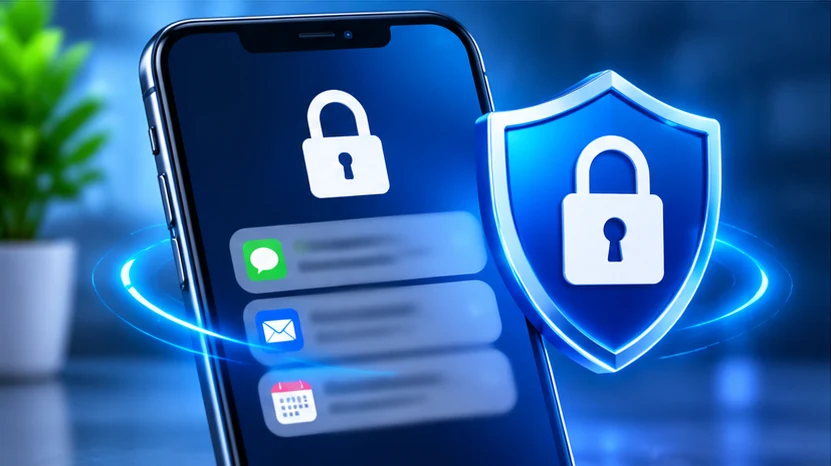
Your iPhone is more than just a smartphone. It is a digital wallet, personal assistant, communication device, and gateway to your online identity.
But what happens if someone steals your iPhone after watching you enter your passcode? What if a scammer pretends to be your bank and tricks you into sharing sensitive information?
These threats are becoming increasingly sophisticated. Fortunately, Apple provides several built-in security and privacy features that can help protect your device.
In this guide, we explore five essential iPhone security settings that every iPhone owner should know about. From preventing unauthorized access to reducing scam calls and protecting personal information, these settings can make your iPhone significantly safer.
1. Enable Stolen Device Protection
Protection level: Very High
One of the biggest risks of iPhone theft occurs when someone steals your device after discovering your passcode.
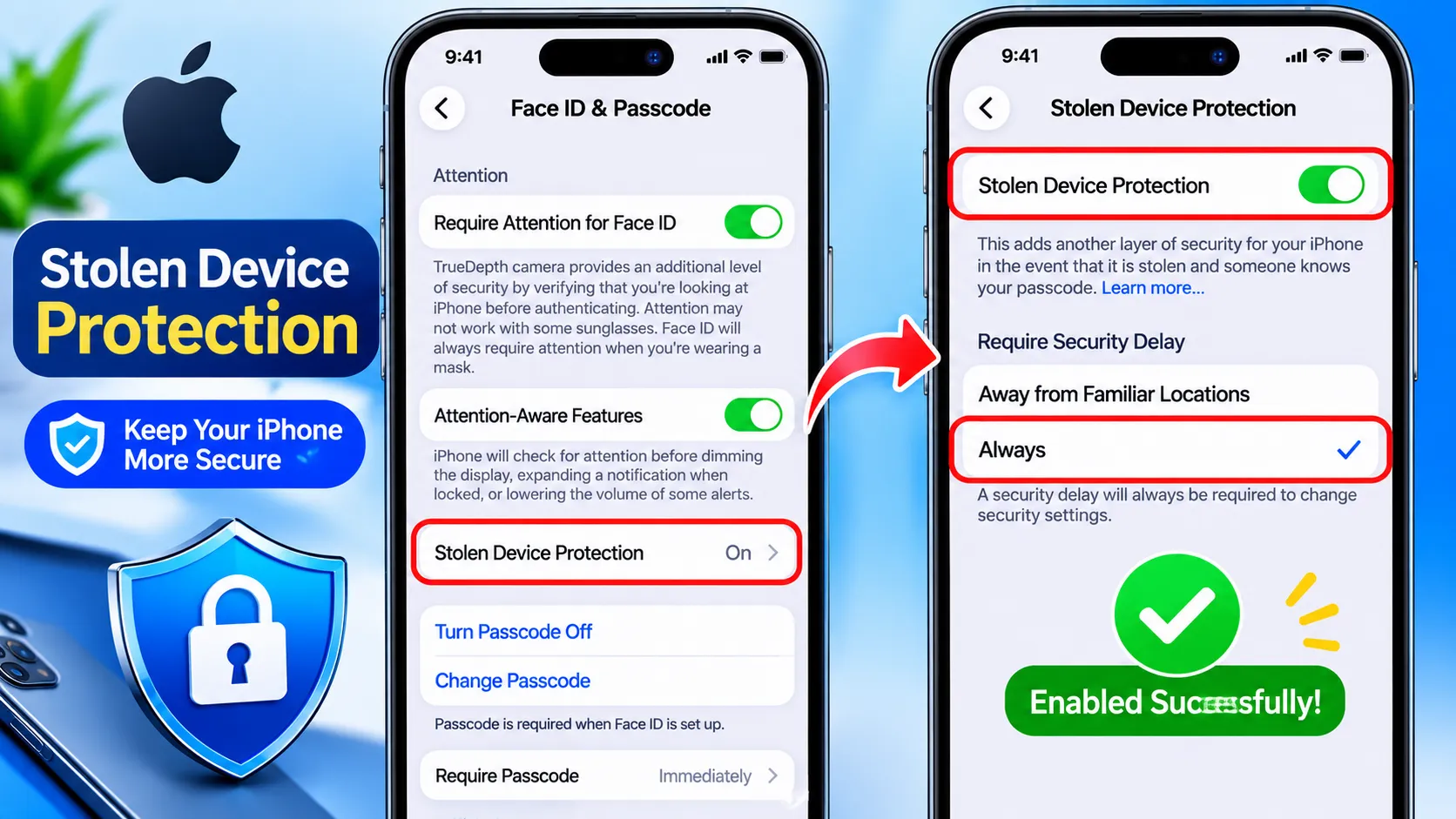
Apple's Stolen Device Protection adds another layer of security when your iPhone is away from familiar locations.
For certain sensitive actions, the feature requires Face ID or Touch ID without allowing your passcode as a fallback. Critical changes can also trigger a one-hour Security Delay followed by another biometric authentication.
How to enable Stolen Device Protection
Open Settings.
Select Face ID & Passcode.
Enter your passcode.
Tap Stolen Device Protection.
Turn the feature on.
Select Always under Require Security Delay if you want stronger protection.
Why this setting matters
Makes unauthorized account changes more difficult.
Protects access to saved passwords.
Helps prevent thieves from taking control of your Apple Account.
Adds additional security to sensitive actions.
SamReview Verdict: This is one of the most valuable iPhone security features. We strongly recommend enabling it, especially if you frequently use your phone outside your home.
Compatibility: iOS 17.3 or later.
2. Turn On Impersonation Risk Detection
Protection level: High
Scammers frequently pretend to represent banks, delivery companies, government organizations, and other trusted services.
Some attacks use sophisticated social engineering to convince victims to approve transactions or reveal sensitive information.
Apple's Impersonation Risk Detection provides an additional security layer for supported third-party apps. It can assess potential impersonation risks using relevant device and account signals.
Depending on the risk assessment, a compatible app may request additional verification or display a warning.
How to enable it
Open Settings.
Select Privacy & Security.
Look for Impersonation Risk Detection, if available.
Enable Share with App Developers if the option is presented.
Follow any additional instructions.
Why this setting matters
Provides additional protection against certain impersonation scams.
Helps supported apps assess potential risks.
Adds another layer of verification to compatible experiences.
Important: This feature does not automatically detect every scam call or protect every banking application. Its effectiveness depends on compatible apps and supported implementations.
SamReview Verdict: A promising additional security layer, particularly as digital impersonation scams become more sophisticated.
3. Silence Unknown Callers and Filter Suspicious Messages
Protection level: High
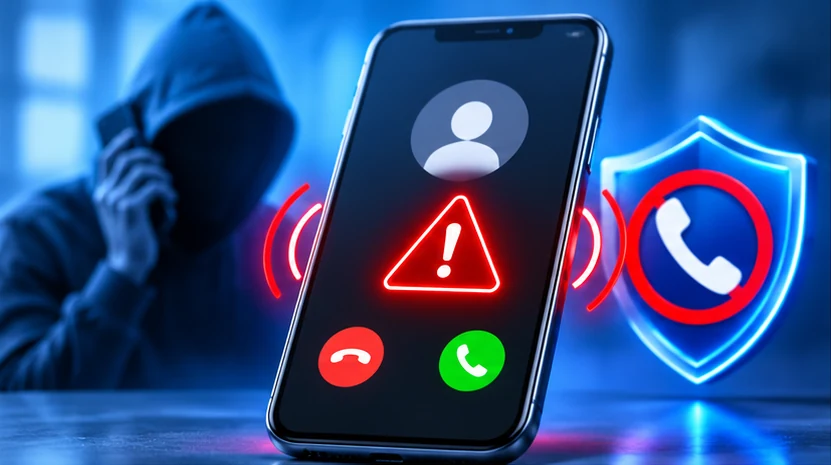
Have you ever received a phone call from someone pretending to represent your bank or mobile operator?
Caller ID spoofing can make fraudulent calls appear more convincing by displaying misleading caller information.
Your iPhone includes built-in tools that can reduce unwanted calls and help organize messages from unknown senders.
How to silence unknown callers
Open Settings.
Select Apps.
Tap Phone.
Find Silence Unknown Callers.
Enable the feature if available.
How to filter unknown messages
Open Settings.
Select Apps.
Tap Messages.
Enable Filter Unknown Senders.
You can also explore supported carrier spam identification and blocking options.
Why this setting matters
Reduces interruptions from unknown callers.
Helps separate messages from unknown senders.
Makes suspicious communication easier to manage.
Reduces exposure to unsolicited calls.
SamReview Verdict: Particularly useful for people who receive frequent promotional calls or suspicious messages.
Remember that call screening cannot guarantee that a caller is genuine. Never share your OTP, banking PIN, or password with an unexpected caller.
4. Enable Find My Network and Send Last Location
Protection level: Very High
Losing your iPhone can be stressful, especially when it contains personal information, saved passwords, and access to important accounts.
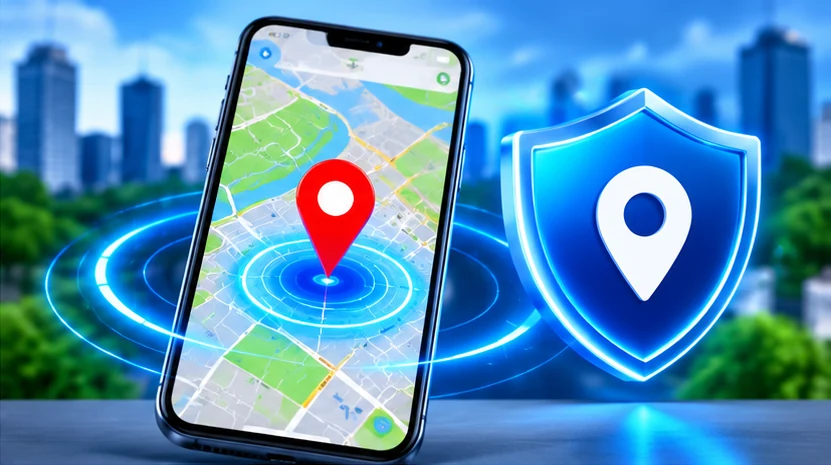
Apple's Find My feature helps you locate a missing device and take protective actions remotely.
With Find My network enabled, compatible devices may be located even when offline or powered off, depending on the model and supported conditions.
Send Last Location can also send the device's last known location when its battery becomes critically low.
How to enable Find My
Open Settings.
Tap your Apple Account name.
Select Find My.
Tap Find My iPhone.
Enable Find My iPhone.
Enable Find My network.
Enable Send Last Location.
Why this setting matters
Helps locate a missing iPhone.
Supports Lost Mode.
Helps protect your information remotely.
Can provide location information even when the device is offline, where supported.
SamReview Verdict: Find My is a must-have feature. Enable it before your phone gets lost or stolen, not after.
5. Protect Your Lock Screen From Exposing Private Information
Protection level: High
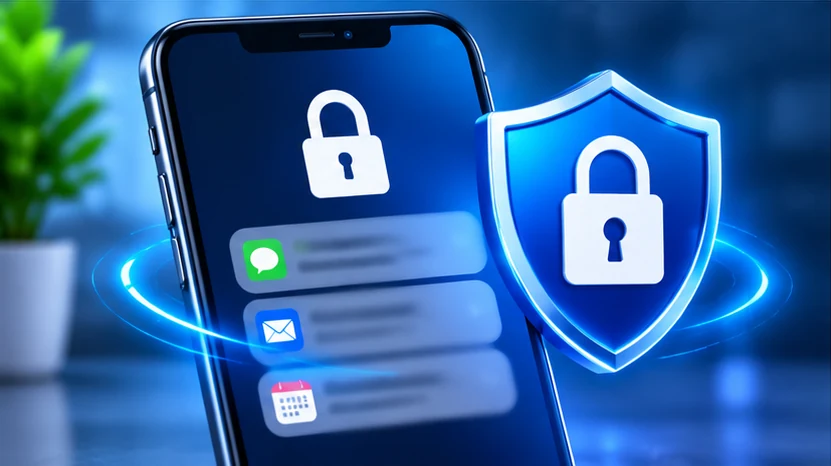
Your iPhone can reveal sensitive information even when it is locked.
Private messages, verification codes, banking alerts, and email previews may appear on your lock screen.
Someone nearby could potentially read these notifications without unlocking your device.
Fortunately, Apple allows you to control what appears on your lock screen and which features remain accessible.
How to hide notification previews
Open Settings.
Select Notifications.
Tap Show Previews.
Choose When Unlocked.
How to restrict lock-screen access
Open Settings.
Select Face ID & Passcode.
Enter your passcode.
Scroll to Allow Access When Locked.
Disable features you do not need, such as Control Center or Siri.
SamReview tip: “Always” gives stronger protection wherever you are, but it can add friction when changing security settings. Keep your recovery information up to date.
Why this setting matters
Keeps private messages hidden.
Reduces exposure of verification codes.
Protects sensitive notifications in public places.
Gives you more control over lock-screen privacy.
SamReview Verdict: A simple but effective privacy improvement, particularly for people who frequently use their iPhones in crowded public places.
Comparison: Which iPhone Security Settings Matter Most?
Security Setting | Main Protection | Priority |
|---|---|---|
Stolen Device Protection | Theft and account protection | Critical |
Impersonation Risk Detection | Impersonation scams | High |
Silence Unknown Callers | Unwanted calls | High |
Find My Network | Lost device recovery | Critical |
Lock Screen Privacy | Personal information | High |
Additional iPhone Privacy Features Worth Exploring
The five settings above provide a strong starting point. However, there are other useful privacy features worth considering.
Safety Check
Safety Check allows you to review who has access to your shared information, location, and other personal data.
Find it under:
Settings → Privacy & Security → Safety Check.
Require Face ID for Apps
You can lock supported apps using Face ID.
Press and hold a supported app icon, then select Require Face ID if available.
This can provide additional protection for sensitive applications.
App Tracking Transparency
Some apps request permission to track your activity across other companies' apps and websites.
Go to:
Settings → Privacy & Security → Tracking.
You can disable Allow Apps to Request to Track if you prefer to limit tracking requests.
Automatic iOS Updates
Regular software updates are essential for security.
Go to:
Settings → General → Software Update → Automatic Updates.
Enable the available automatic update options.
Final Verdict: Are These iPhone Security Settings Worth Enabling?
Absolutely.
Apple already provides several useful security and privacy tools, but many users never take the time to configure them.
Our strongest recommendations are Stolen Device Protection and Find My because they address some of the most serious risks associated with losing or having an iPhone stolen.
The remaining settings add useful protection against unwanted calls, impersonation attempts, and accidental exposure of personal information.
No single security feature can prevent every attack. Combining these tools with strong passwords, two-factor authentication, regular software updates, and careful online behavior provides a much stronger defense.
SamReview Final Rating: 9.2/10
Our recommendation: Take a few minutes today to review these five settings. A small improvement in your iPhone's security configuration could help protect your personal information and digital identity.
Frequently Asked Questions
1. What is the most important iPhone security setting?
Stolen Device Protection is one of the most important features because it adds biometric authentication and security delays to sensitive actions.
2. Can someone track an iPhone after it is switched off?
Compatible iPhones can sometimes be located through the Find My network even when powered off. Availability depends on the device model, settings, and supported conditions.
3. Does Silence Unknown Callers block all scam calls?
No. It reduces interruptions from unknown numbers but cannot identify every scammer or prevent caller ID spoofing.
4. Does Impersonation Risk Detection work with every banking app?
No. Only compatible third-party apps can request risk assessments through Apple's system.
5. Do iPhones need antivirus applications?
Most users should begin with Apple's built-in security features, regular software updates, and safe browsing practices. Additional security tools depend on individual needs.
Official references
Editorial Disclaimer
Security features, compatibility, and menu names may vary depending on your iPhone model, iOS version, and region. Always check Apple's official documentation for the latest information.
About SamReview
SamReview helps readers make informed technology and product decisions through practical guides, research, and independent editorial reviews.
Reviews & Comments (1)
Nice Content
shahinur alam
Expert reviewer and tech enthusiast at SamReview.
More News
View All →
Elon Musk Spent Nearly $500 Million on the Midterms and Lost Big — Now His AI Empire Faces a New Threat
Elon Musk invested nearly half a billion dollars in the 2026 US midterm elections, hoping to strengthen Republican political influence. But the results delivered a major setback. Democrats made significant gains, Texas changed political direction, and communities across the country pushed back against large AI data center projects. Now, Musk's growing AI ambitions face a new challenge that money alone may not solve.
Google Bans Android TV Manufacturer After 1.3 Million Devices Are Infected With Malware Backdoor
A massive cybersecurity investigation has uncovered a global botnet hidden inside Android TV boxes and other smart devices. Google has cut ties with the manufacturer Videostrong Technology after discovering that its devices were being used for cybercrime without users' knowledge.